
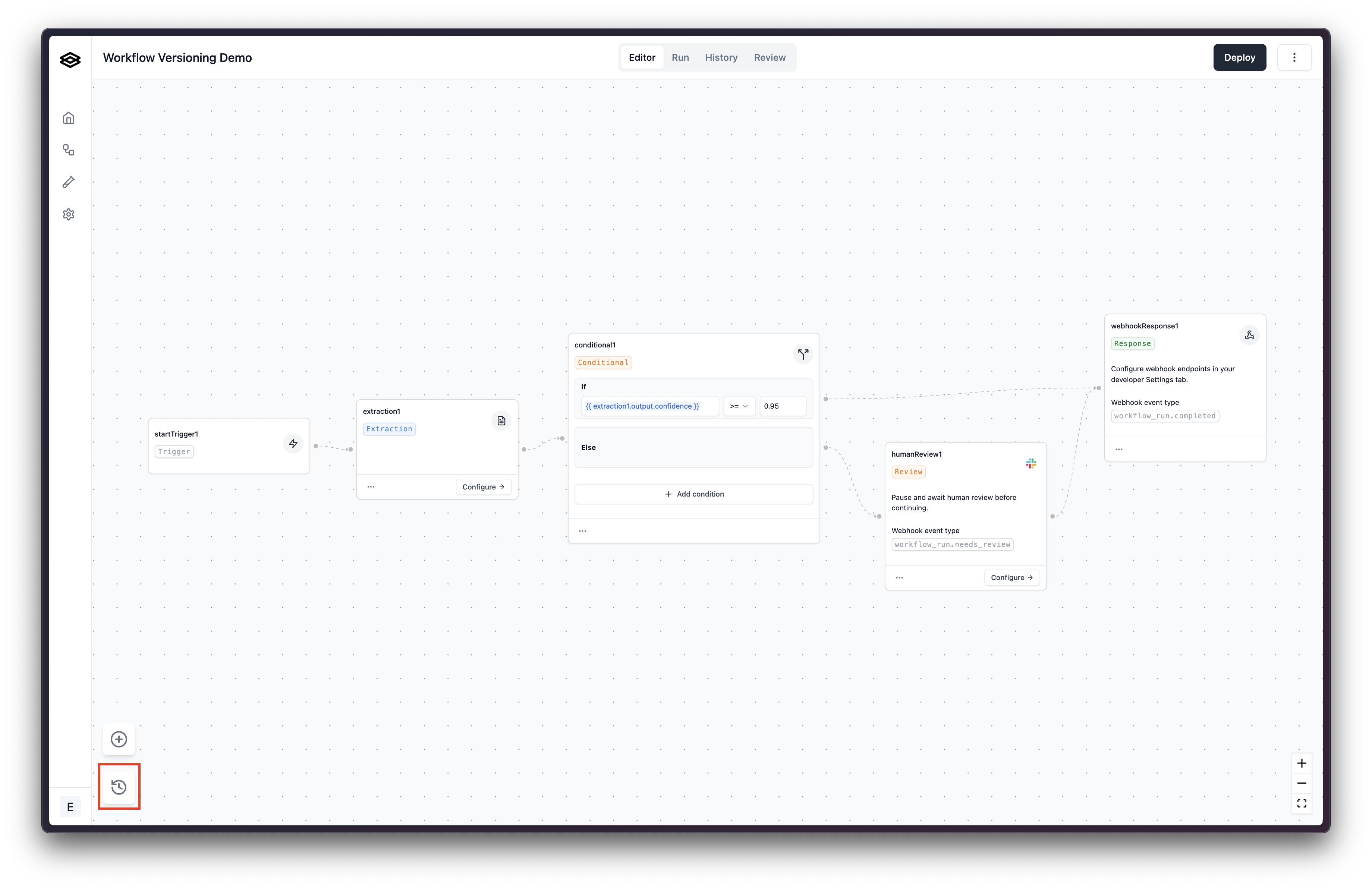
 The versions are displayed in a side panel on the left side of the screen. The “Draft” version above the separator is the version where any updates to the workflow will be saved. The versions below the separator are the deployed versions of the workflow.
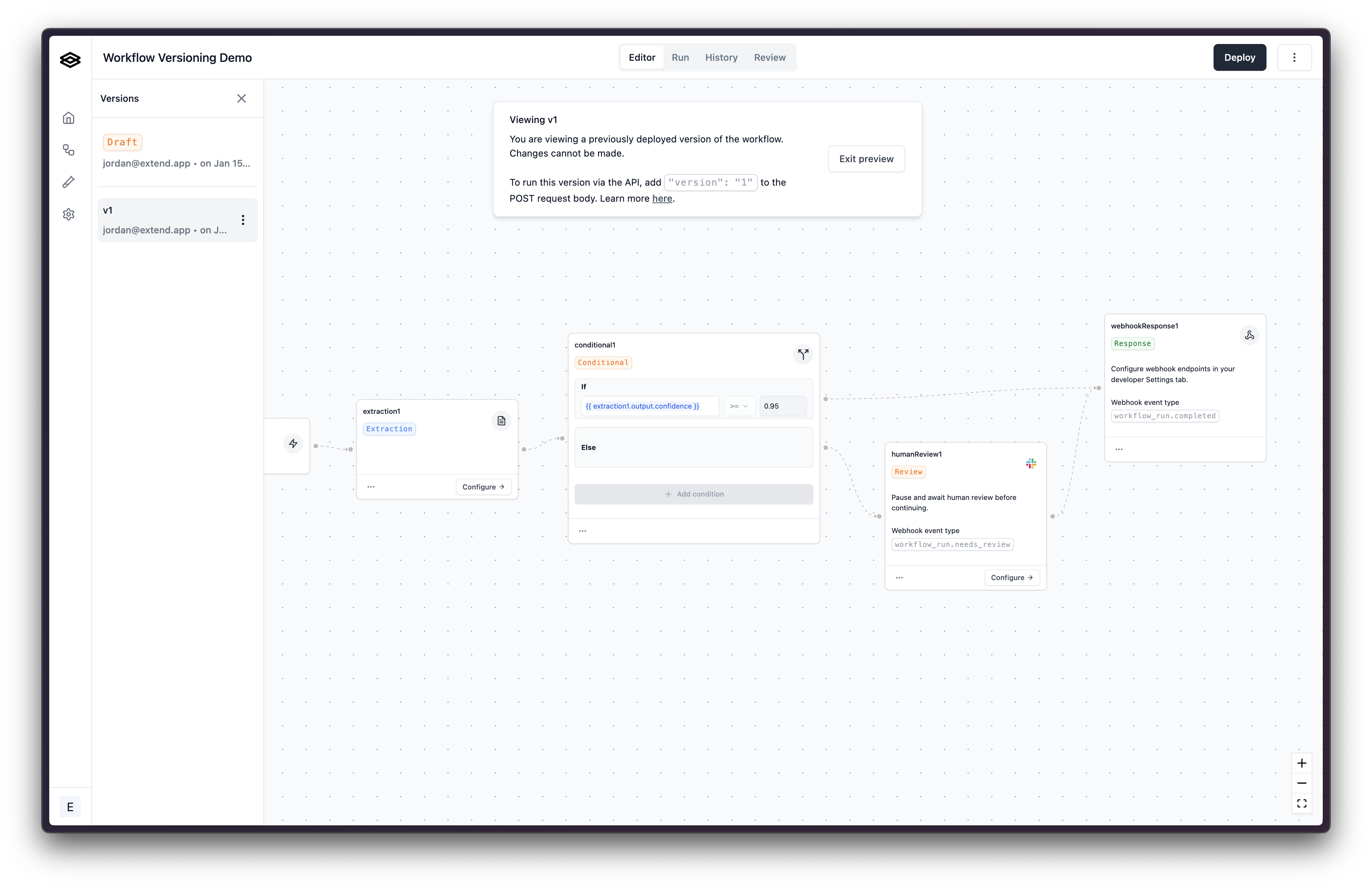
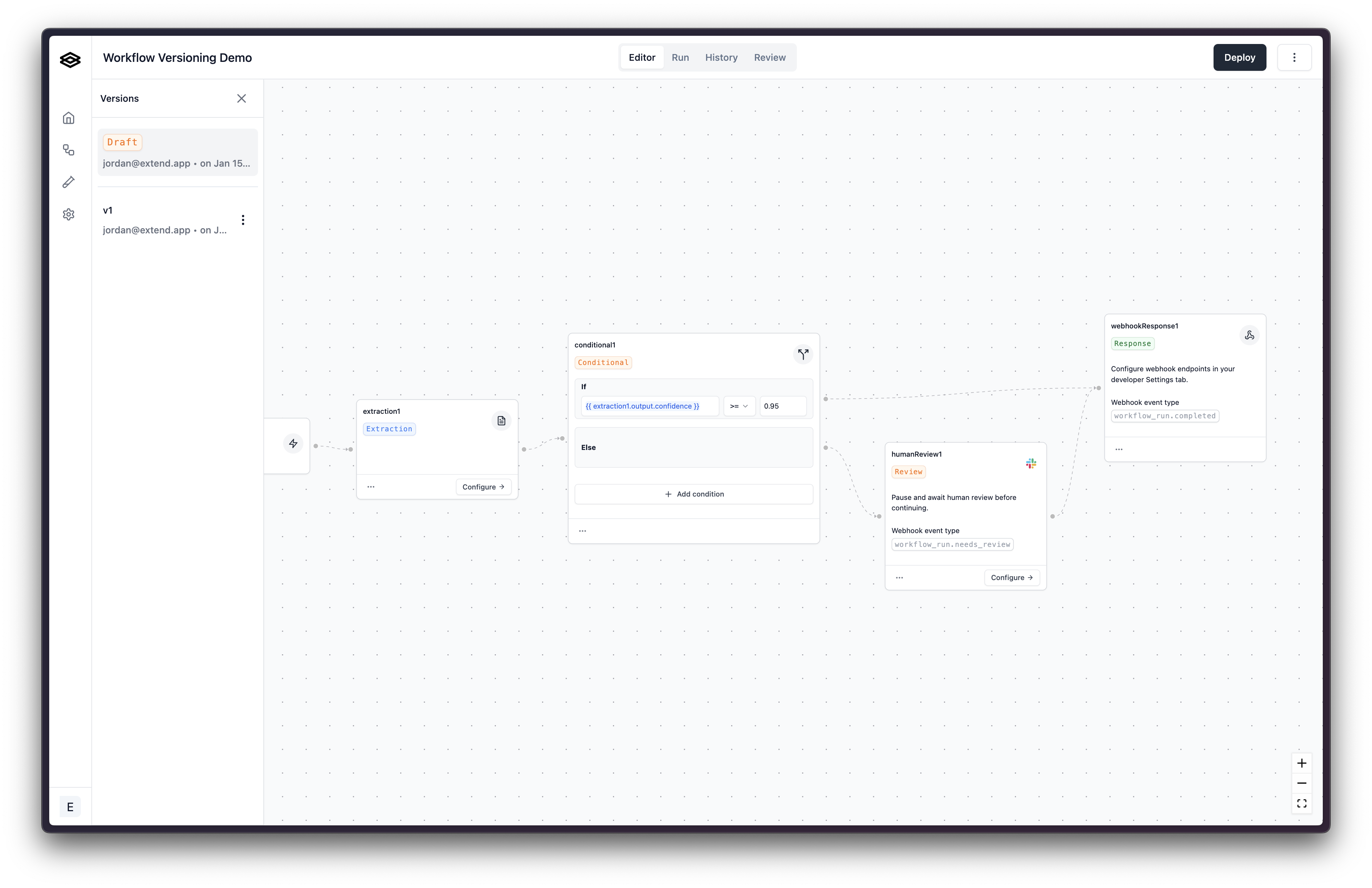 You can view a previously deployed version of the workflow by clicking on the version. This will load the workflow in the editor for viewing, however, you cannot make any changes to a deployed workflow version. The idea being that once a workflow has been deployed, you can count on it not changing and can confidently use it in production environments.
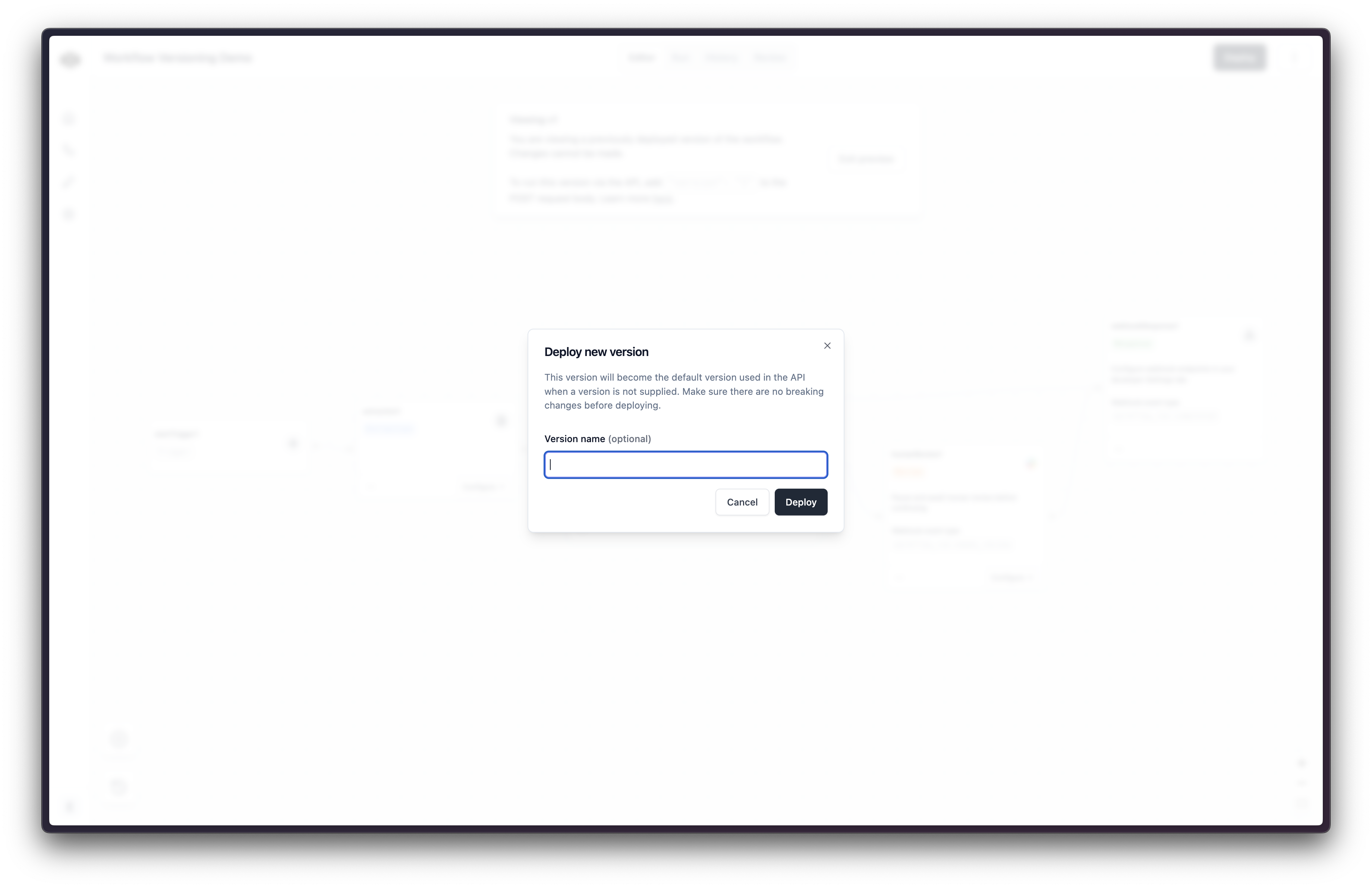
 To deploy a new version of the workflow, click on the “Deploy” button in the upper right corner of the workflow editor. This will deploy the current draft version of the workflow and create a new version in the version history.
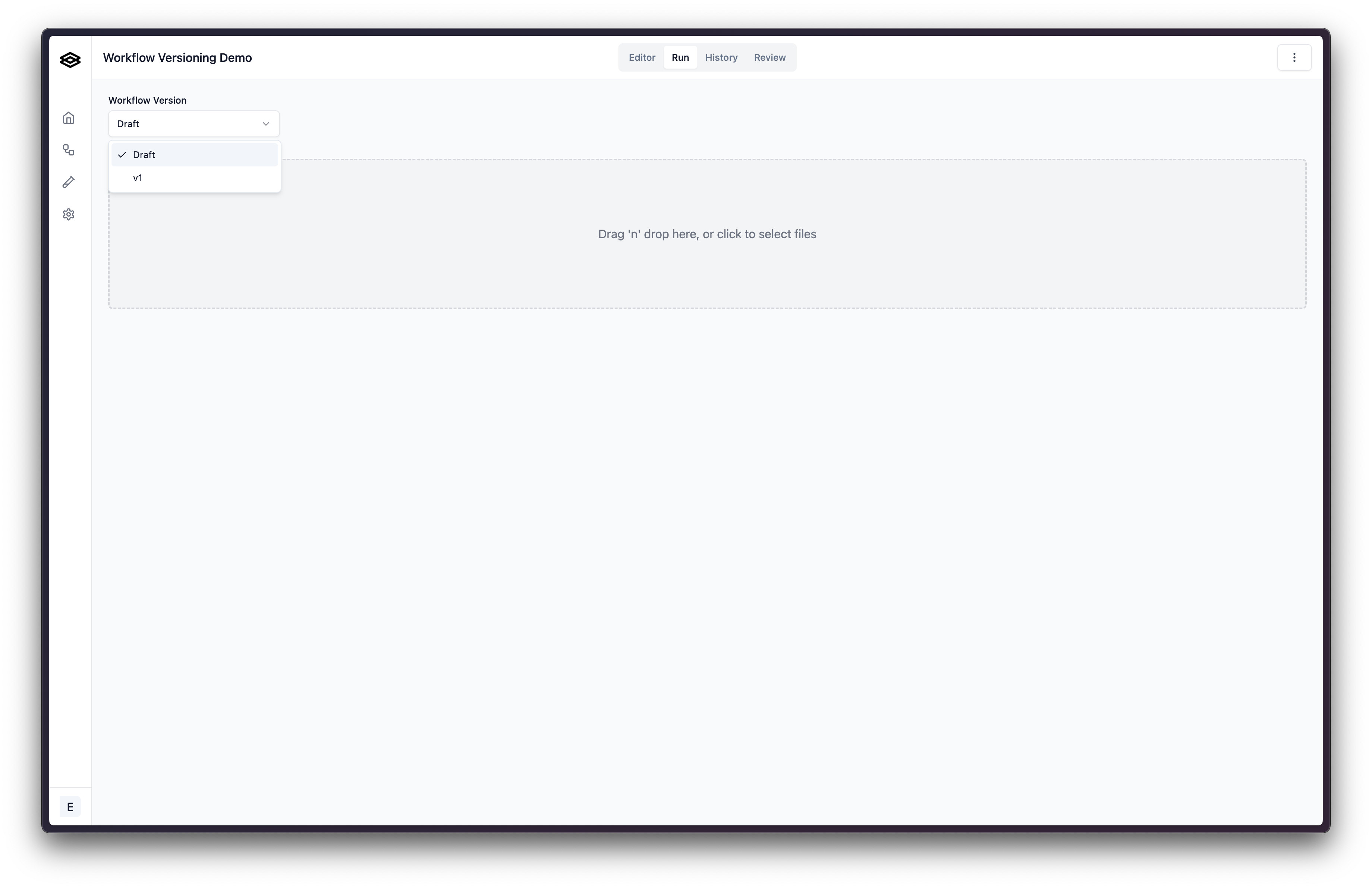
 When running a workflow, you can choose which version of the workflow to run. By default, the “Draft” version of the workflow will be run, but you can choose a different version from the dropdown.
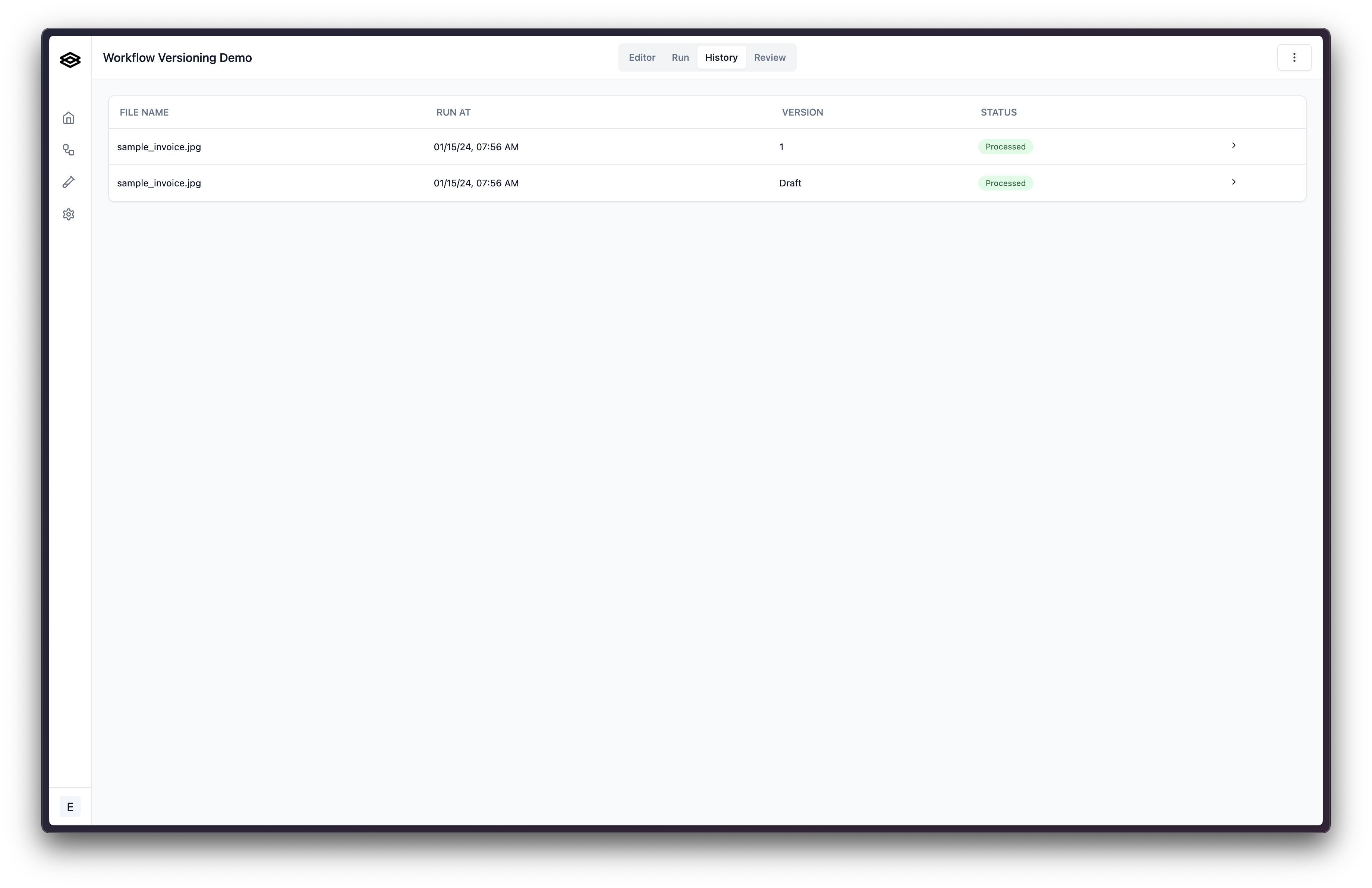
 After running a workflow, you can view the version of the workflow that was run in the history tab.